Is there a Formula for Mapping?
If I create a Mapping sheet that defines the relationship between each P&L account and its corresponding mapping code, can I then use the P&L account in cell C4 as a lookup value to return the correct mapping code?
In other words, I want Excel to search for the P&L account from C4 within the range Mapping!$B$2:$T$21, and if the P&L account is found, the formula should return the associated mapping code from that same row.
After some time it worked to a surtain point, as i can not understand why it doesen't accept surtain values and fill them in if they are found withing the range.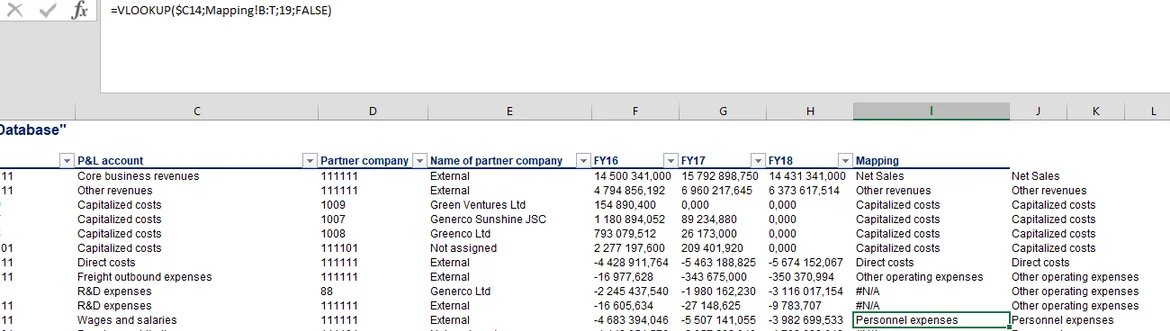 Mapingsheet Created;each P&Laccount stated in diffrent colum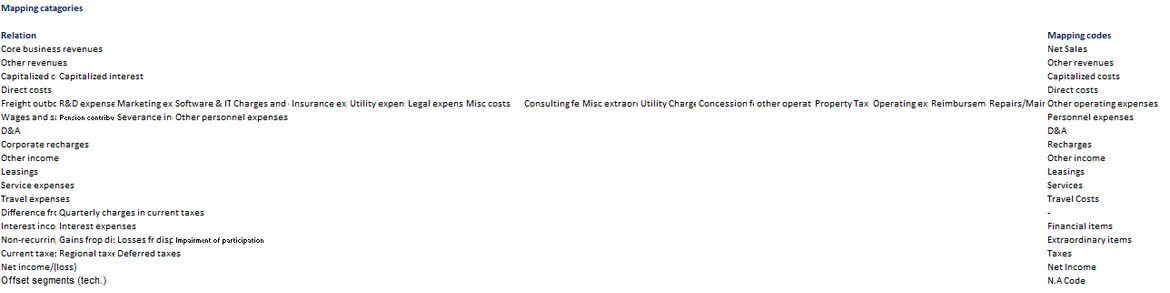
In other words, I want Excel to search for the P&L account from C4 within the range Mapping!$B$2:$T$21, and if the P&L account is found, the formula should return the associated mapping code from that same row.
After some time it worked to a surtain point, as i can not understand why it doesen't accept surtain values and fill them in if they are found withing the range.
Mapingsheet Created;each P&Laccount stated in diffrent colum
1 answers ( 0 marked as helpful)
Super learner
This user is a Super Learner. To become a Super Learner, you need to reach Level 8.
Best Formula for Mapping P&L Account → Mapping Code
If your P&L account is in C4, and you want to search for it anywhere in Mapping!B2:T21, and return the mapping code from the same row, use:
Excel 365 / 2021 (recommended):
Formula:
=IFERROR(INDEX(Mapping!$A$2:$A$21, MATCH(C4, Mapping!$B$2:$T$21, 0)), "")
How it works:
MATCH(C4, Mapping!$B$2:$T$21, 0)
→ finds the row where the P&L account appears (even though it’s in columns B to T)
INDEX(Mapping!$A$2:$A$21, …)
→ returns the mapping code in column A of that same row
IFERROR(..., "")
→ avoids errors when not found
🔍 Why some values don’t return results
Common reasons:
1. Extra spaces
The P&L account in C4 might have hidden spaces.
Use:
=TRIM(C4)
2. Text vs Number mismatch
One sheet stores numbers as text → the other as numbers.
Fix:
=VALUE()
or
=TEXT()
3. Spelling differences
Even a small mismatch stops MATCH from working.
4. Merged cells on the Mapping sheet
MATCH cannot look inside merged cells.
If each P&L account is in a different column (not vertical)
Your range is wide, so the lookup must search horizontally.
The formula above already handles that.
If you want, I can help:
Fix your formula
Rewrite it for VLOOKUP / XLOOKUP
Check why specific values aren’t being found
Just paste your current formula or a small sample of your Mapping sheet.
If your P&L account is in C4, and you want to search for it anywhere in Mapping!B2:T21, and return the mapping code from the same row, use:
Excel 365 / 2021 (recommended):
Formula:
=IFERROR(INDEX(Mapping!$A$2:$A$21, MATCH(C4, Mapping!$B$2:$T$21, 0)), "")
How it works:
MATCH(C4, Mapping!$B$2:$T$21, 0)
→ finds the row where the P&L account appears (even though it’s in columns B to T)
INDEX(Mapping!$A$2:$A$21, …)
→ returns the mapping code in column A of that same row
IFERROR(..., "")
→ avoids errors when not found
🔍 Why some values don’t return results
Common reasons:
1. Extra spaces
The P&L account in C4 might have hidden spaces.
Use:
=TRIM(C4)
2. Text vs Number mismatch
One sheet stores numbers as text → the other as numbers.
Fix:
=VALUE()
or
=TEXT()
3. Spelling differences
Even a small mismatch stops MATCH from working.
4. Merged cells on the Mapping sheet
MATCH cannot look inside merged cells.
If each P&L account is in a different column (not vertical)
Your range is wide, so the lookup must search horizontally.
The formula above already handles that.
If you want, I can help:
Fix your formula
Rewrite it for VLOOKUP / XLOOKUP
Check why specific values aren’t being found
Just paste your current formula or a small sample of your Mapping sheet.